Learning how to use a cat camera enables pet owners to keep a close eye on their feline friends, ensuring their safety and well-being even when away from home. These devices provide a seamless way to observe your cat’s activities, offer peace of mind, and enhance your interaction with your pet. With a variety of camera types and features available, choosing the right setup is essential for optimal monitoring.
This guide covers the essential steps from selecting the appropriate camera, setting it up in ideal locations, connecting and configuring the device, to utilizing advanced features like motion detection and live streaming. Additionally, it emphasizes security practices to protect your data and offers maintenance tips to keep your camera functioning smoothly, ultimately enriching your pet monitoring experience.
Introduction to Using a Cat Camera
Monitoring your feline companion through a dedicated cat camera provides peace of mind and enhances your understanding of their daily activities. These cameras enable pet owners to observe their cats remotely, ensuring their safety and wellbeing even when they are alone at home. The primary purpose is to foster a secure environment, reduce anxiety related to separation, and identify behaviors or issues that might require attention.
With a variety of cat cameras available on the market, choosing the right one depends on your specific needs and preferences. Some cameras focus on live streaming, while others offer features like motion detection, night vision, or interactive capabilities. Understanding the different types can help in selecting a device that seamlessly integrates into your routine and effectively monitors your pet.
Types of Cat Cameras
Different categories of cat cameras cater to diverse monitoring needs, offering a range of functionalities and designs. Recognizing these types assists in making an informed decision based on the features most relevant to your pet care approach.
| Type | Description | Ideal Use |
|---|---|---|
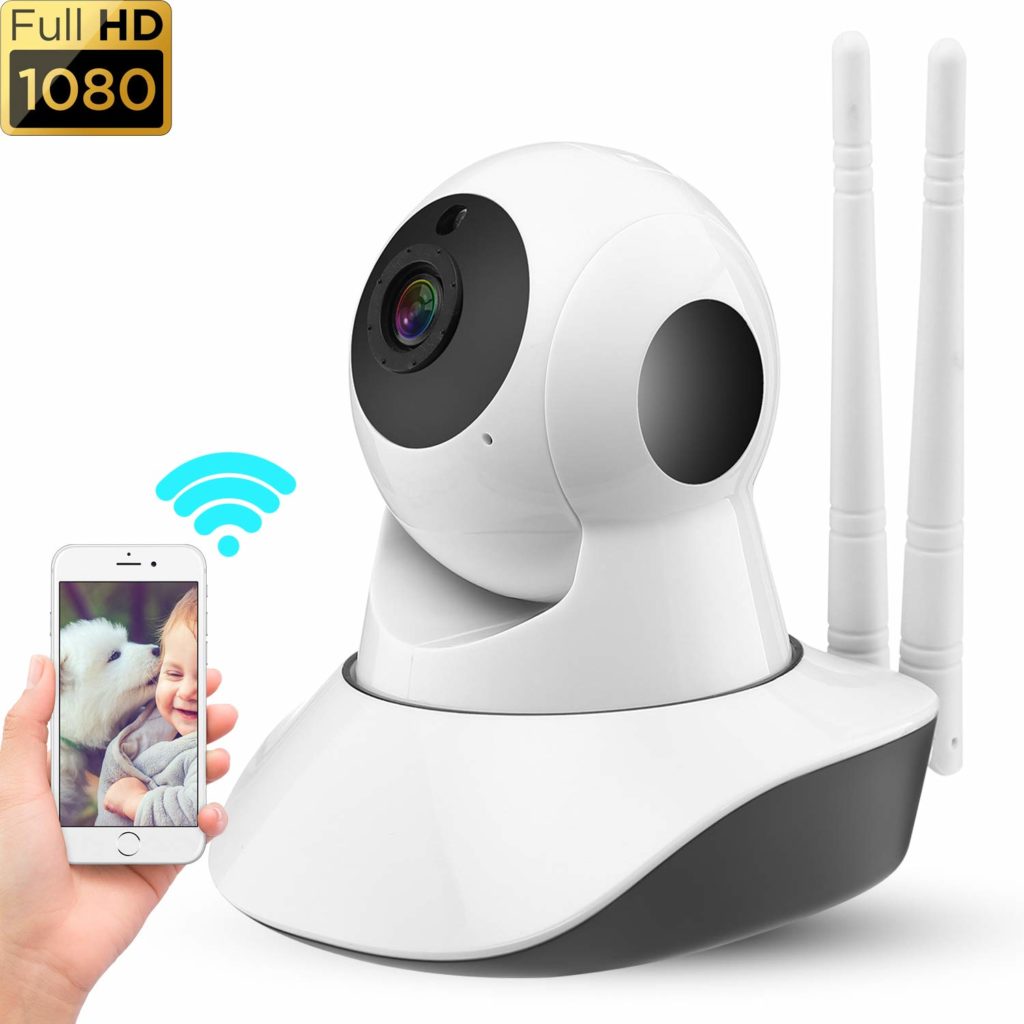
| Wi-Fi Pet Cameras | Wireless cameras that connect to your home Wi-Fi network, enabling real-time streaming via smartphone apps. They often include features like two-way audio, motion alerts, and HD video quality. | Suitable for everyday monitoring, checking on pets remotely, and integrating with smart home systems. |
| Pet Cameras with Treat Dispensers | Cameras equipped with mechanisms to dispense treats, allowing interaction and reward-based training. Typically include a camera and speaker system for two-way communication. | Best for engaging with your cat, providing mental stimulation, and reinforcing positive behaviors. |
| Night Vision Cameras | Devices with infrared sensors that enable clear video capture in low-light or dark conditions, ensuring 24-hour monitoring. | Ideal for observing nocturnal behaviors or when the house is dark. |
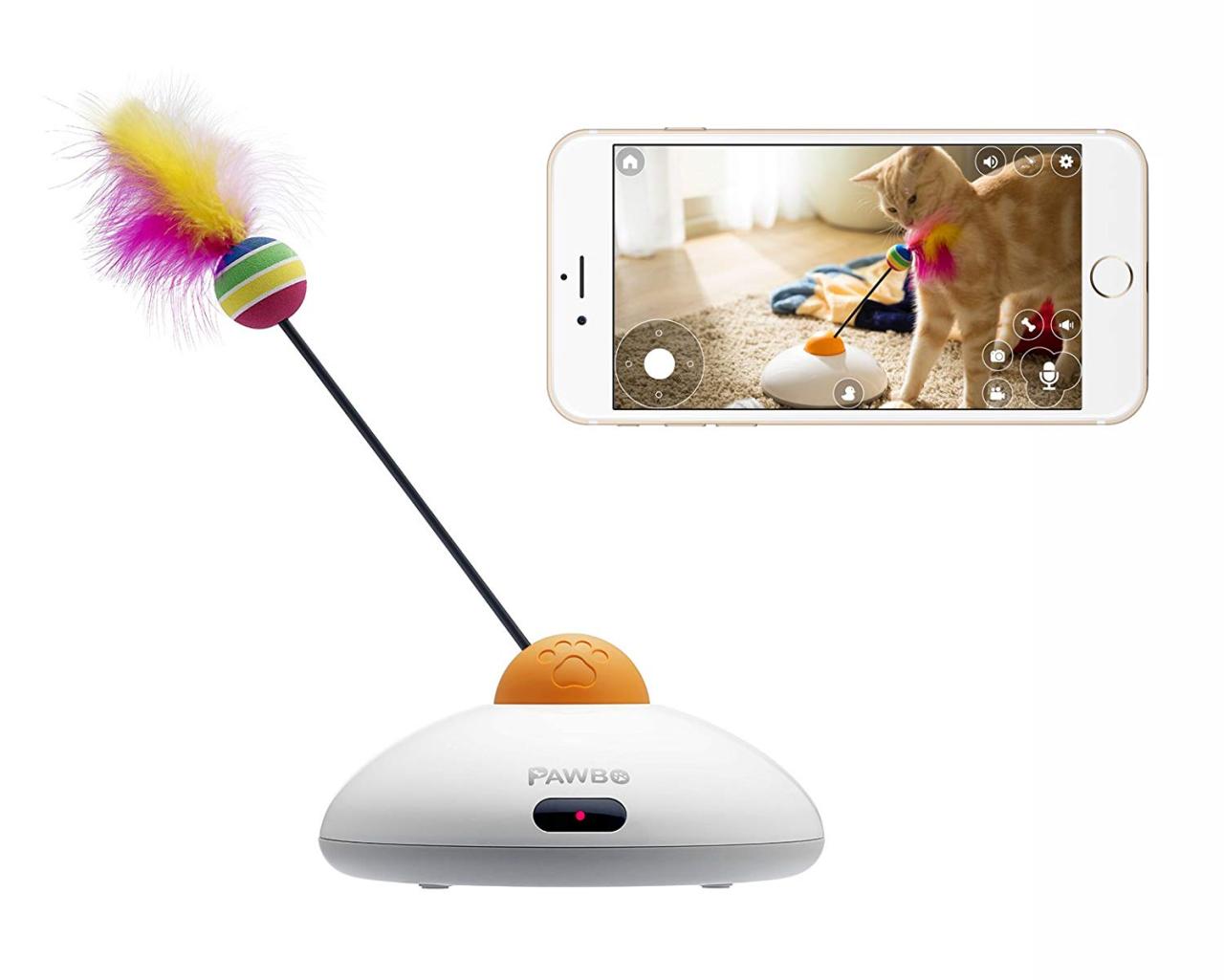
| Interactive Cameras | Advanced cameras with features like laser pointers, remote-controlled toys, or automated movements to entertain your cat remotely. | Perfect for keeping active cats engaged and preventing boredom during your absence. |
Key Features to Consider
Choosing an appropriate cat camera requires assessing features that enhance usability, security, and interaction. These aspects ensure the device fulfills your monitoring objectives effectively and fits seamlessly into your lifestyle.
Important features include high-definition video quality, motion detection capabilities, night vision, two-way audio, and remote control options.
Understanding each feature’s benefits can significantly impact your overall satisfaction with the product. For example, high-definition resolution provides clearer images for better observation, while two-way audio allows you to communicate with your cat, soothing or calling them when necessary.
- Video Quality: Opt for cameras with at least 1080p resolution to ensure crisp, detailed images.
- Field of View: Wide-angle lenses reduce blind spots, providing comprehensive coverage of the monitored area.
- Motion and Sound Detection: Alerts for movement or sounds help you respond promptly to your cat’s activities or potential issues.
- Night Vision: Infrared sensors ensure visibility during dark hours without disturbing your pet with bright lights.
- Two-way Audio: Enables real-time communication, comforting your cat or deterring unwanted behaviors remotely.
- Compatibility: Confirm that the camera integrates with your smartphone, tablet, or smart home system for convenient access.
By carefully evaluating these aspects, pet owners can select a cat camera that best suits their monitoring needs, ensuring their feline friends are safe, entertained, and well cared for even in their absence.
Setting Up Your Cat Camera
Proper placement and setup of your cat camera are essential to ensure optimal monitoring and security of your feline friend. A strategic setup allows you to capture clear visuals, monitor activity effectively, and maintain a secure environment for your pet. Whether you are installing the camera in a living room, bedroom, or an outdoor patio, understanding the correct procedures will maximize the device’s performance and coverage.
In this section, we will explore step-by-step instructions for physically installing your cat camera in various locations, along with a comprehensive table to compare different placement options, connection types, and power sources. Additionally, valuable tips will be shared to help you choose the best spots for your camera, ensuring the most effective monitoring experience.
Physical Setup of the Camera in Various Locations
The physical installation process varies based on the environment and the type of camera you are using. However, some universal steps can guide you through the setup process:
- Identify a suitable location that offers a clear view of your cat’s usual activity area. Consider height, angle, and potential obstructions.
- Ensure the surface or mounting surface is stable and secure. For wall-mounted cameras, use appropriate tools and hardware provided by the manufacturer.
- Attach the camera securely, making sure it is level and angled to cover the desired area comprehensively.
- Connect the camera to a power source, whether via an electrical outlet or a USB port, depending on the device specifications.
- Establish a network connection, either through Wi-Fi or Ethernet cable, to enable live streaming and app access.
- Test the camera’s view and adjust the angle or position as needed to maximize coverage.
Placement Options, Connection Types, and Power Sources
Choosing the right placement and connection method is crucial for optimal camera performance. The table below summarizes common options for setup based on different scenarios:
| Placement Option | Connection Type | Power Source |
|---|---|---|
| Living Room Shelf or Corner | Wi-Fi or Ethernet (if available) | Standard electrical outlet |
| Ceiling Mount in Dining Area | Wi-Fi (preferred for flexibility) | Power adapter plugged into nearby outlet |
| Outdoor Patio or Garden | Wi-Fi with weatherproof connection | Solar-powered or outdoor weatherproof power outlet |
| Bedroom Side Table or Window Sill | Wi-Fi | Electrical outlet or USB port |
| Hallway or Entrance | Ethernet cable (for stable connection) | Direct connection to power outlet |
“Optimal placement involves balancing coverage, accessibility, and minimizing obstructions, ensuring your camera captures the best view of your feline companion.”
When selecting a location, consider factors such as natural light, potential interference from electronic devices, and accessibility for maintenance. For outdoor setups, weather-resistant models with secure mounting options are recommended to withstand environmental elements. Ensuring the camera is positioned at a height that provides a broad view while avoiding blind spots will significantly enhance its effectiveness.
Connecting and Configuring the Camera
Successfully connecting your cat camera to your Wi-Fi network and configuring its settings are essential steps to enable smooth operation and optimal performance. Proper setup ensures that you can access live feeds, receive notifications, and customize camera preferences to suit your needs. This section provides detailed procedures for establishing a network connection and adjusting settings through the app or web interface.
Effective configuration allows you to tailor features such as video quality, motion detection sensitivity, and alert preferences. Ensuring these parameters are correctly set up enhances your ability to monitor your pet efficiently and securely from any location.
Connecting the Camera to Wi-Fi or Other Networks
Connecting your cat camera to your Wi-Fi network involves a series of straightforward steps, but it is crucial to follow them precisely for a stable connection. Most modern cameras support 2.4 GHz and 5 GHz Wi-Fi bands, with 2.4 GHz being more common for broader compatibility. Below are the general procedures:
- Power on the camera and ensure it is in pairing mode, which may involve pressing and holding a reset or sync button as indicated in the user manual.
- Open the dedicated mobile app or web interface provided by the camera manufacturer on your smartphone, tablet, or computer.
- Navigate to the network setup or device addition section within the app. This is usually labeled as “Add Device,” “Set Up New Camera,” or similar.
- Select your Wi-Fi network from the list of available networks. Enter your Wi-Fi password carefully to prevent connection issues.
- Follow the on-screen instructions to complete the connection process. This may include waiting for the camera to confirm successful pairing, which can take up to a couple of minutes.
For cameras that support Ethernet connections or other network types, connect the device via a wired Ethernet cable directly to your router for a more stable connection. Consult the user manual for specific instructions related to your model.
Accessing and Configuring Camera Settings
Once your camera is connected to the network, customizing its settings ensures it operates according to your preferences. Access can be achieved through the app or via a web interface, providing flexibility and detailed control options. The typical process involves:
- Launching the camera’s app or logging into its web portal using a secure login credential.
- Finding the device management or settings menu within the interface. This section often includes options for video, notifications, and advanced configurations.
- Adjusting settings such as resolution, motion detection zones, recording schedules, and alert preferences. Changes are usually saved automatically or through a save button.
- Regularly updating firmware and software through the interface to enhance security and device functionality.
Properly configured camera settings optimize performance, enhance security, and ensure you receive timely alerts about your pet’s activities.
Common Camera Settings, Options, and Recommended Configurations
Understanding the available settings helps in tailoring your camera’s operation to your specific needs. The following table summarizes typical options, their functions, and recommended configurations:
| Setting | Options | Recommended Configuration |
|---|---|---|
| Video Resolution | 720p, 1080p, 4K | 1080p for clear images without excessive bandwidth use |
| Motion Detection Sensitivity | Low, Medium, High | Medium for balance; adjust higher if pets are highly mobile |
| Notification Alerts | Push notifications, Email, App alerts | Enable push notifications for immediate alerts |
| Recording Mode | Continuous, Motion-activated, Scheduled | Motion-activated with scheduled recordings for efficient storage use |
| Night Vision | On, Off, Auto | Auto for seamless switching between day and night conditions |
| Audio | On, Off | On if two-way communication is desired; off for privacy |
| Storage Options | Cloud, Local SD card, Both | Use cloud backup combined with local storage for reliability |
Using the Camera’s Features Effectively
Maximizing the functionalities of your cat camera ensures comprehensive monitoring and enhances your ability to care for your pet remotely. By understanding how to utilize live streaming, motion detection, recording capabilities, and notification alerts, you can create a seamless and efficient surveillance experience. Additionally, organizing recorded footage with accessible review options allows for better monitoring and peace of mind.
Proper use of these features transforms your camera from a simple monitoring device into a proactive tool that keeps you informed and connected with your feline friend at all times. The following sections delve into the practical applications of each feature, empowering you to make the most out of your investment in a cat camera.
Utilizing Live Streaming, Motion Detection, and Recording Functions
Live streaming provides real-time video access to observe your cat’s activities as they happen, offering immediate reassurance and entertainment. Most cat cameras support high-definition streams, allowing you to see your pet with clarity through your smartphone or computer. To optimize live streaming, ensure your camera is placed at an appropriate height and angle, minimizes background noise, and is connected to a stable Wi-Fi network.
Motion detection enhances your camera’s responsiveness by automatically identifying movement within the camera’s field of view. When activated, it can trigger recordings or notifications, so you are instantly aware of activity, such as your cat playing or exploring. For effective use, adjust motion sensitivity settings to avoid frequent false alerts caused by passing shadows or objects.
Recording functions enable capturing video clips or continuous footage that can be stored for later review. Many cameras support scheduled recordings or event-triggered recordings based on motion detection. It is advisable to select appropriate recording modes depending on your needs—continuous recording offers comprehensive footage, while motion-triggered recording conserves storage space and simplifies review processes.
Setting Alerts and Notifications for Activity
Configuring alert systems ensures you stay informed about your cat’s activity without constantly monitoring the live feed. By setting up notifications for motion detection or sound alerts, you receive real-time updates directly on your mobile device or email. This feature is particularly useful during periods when you are away from home or unable to check the camera manually.
To maximize alert effectiveness, customize the alert frequency and sensitivity levels, avoiding excessive notifications that may lead to alert fatigue. Many camera applications allow you to set specific time frames for alerts, so you can focus notifications during active hours or when you’re most likely to be available to respond.
Reviewing Recordings with Storage and Playback Options
Efficiently managing and reviewing recorded footage is vital for effective monitoring. Most cameras offer a variety of storage options, including local SD cards, cloud storage, or network-attached storage (NAS). Understanding these options helps you choose the most suitable method based on your budget and security requirements.
When reviewing recordings, utilize responsive playback interfaces that allow you to quickly navigate through footage, pause, rewind, or fast-forward. Some systems offer timeline views that visually represent activity, making it easier to locate specific events. Additionally, metadata such as timestamps and event markers streamline the review process, enabling you to assess your cat’s behavior or identify specific incidents efficiently.
Effective management of storage and playback features ensures that you can access important moments without hassle, providing peace of mind and comprehensive oversight of your pet’s daily activities.
Managing Privacy and Security
Ensuring the privacy and security of your cat camera is essential to protect your personal information and prevent unauthorized access. As smart devices become more integrated into daily life, understanding best practices for securing your camera system helps maintain your peace of mind and preserves your home’s safety.Proper management of your camera’s security settings, regular updates, and cautious sharing of access credentials are vital measures.
Implementing these practices minimizes risks such as hacking, data breaches, or inadvertent exposure of sensitive footage. The following guidelines provide a comprehensive overview of effective privacy and security management for your cat camera.
Securing Camera Access and Data
To safeguard your camera from unauthorized access and ensure that your footage remains confidential, it is crucial to adopt robust security measures. This includes controlling who can view the footage, encrypting data transmissions, and regularly monitoring access logs. Using strong, unique passwords for your camera account and associated email or device accounts helps prevent unauthorized login attempts. Additionally, limiting access privileges to trusted users reduces potential vulnerabilities.Reliable security also involves encrypting your video data during transmission and storage.
Many modern cameras support end-to-end encryption, which ensures that footage can only be accessed by authorized users with the correct decryption keys. Avoid using default passwords or sharing login credentials publicly; instead, create complex, unique passwords for each device and account.
Updating Firmware and Changing Passwords
Keeping your camera’s firmware up-to-date is fundamental to maintaining security. Firmware updates often include patches for known vulnerabilities, improvements in encryption protocols, and new features that reinforce device security. Regularly check for updates through the manufacturer’s app or website and apply them promptly.Changing passwords periodically enhances security by reducing the risk of unauthorized access over time. Use a strong, unpredictable password combining uppercase and lowercase letters, numbers, and special characters.
Avoid using easily guessable information such as birthdates or common words. Many cameras allow you to set up two-factor authentication (2FA), adding an extra layer of security by requiring a secondary verification step during login.
Enabling Encryption and Other Security Features
Encryption is a key component of protecting video footage from interception and tampering. Ensure your camera’s settings are configured to use the highest encryption standards available, typically WPA3 for Wi-Fi networks and AES encryption for stored data. This encrypts your data both in transit and at rest, making it significantly more difficult for malicious actors to access or decipher.Other security features include enabling device-specific firewalls, disabling remote access when not needed, and creating secure network environments with strong Wi-Fi passwords.
Many premium cameras also support automatic security alerts in case of suspicious activity, providing early warning if unauthorized access is attempted.
Security Tips to Protect Camera Footage and Personal Information
Maintaining privacy and security requires ongoing vigilance. Below are essential tips to help protect your camera footage and personal data:
-
Always change default passwords immediately after setup and use complex, unique passwords for each device.
- Enable two-factor authentication (2FA) where available to add an extra layer of login security.
- Regularly update your camera’s firmware and associated apps to access the latest security patches.
- Use encrypted connections (such as WPA3 for Wi-Fi and end-to-end encryption for video streams) to protect your data during transmission.
- Restrict access permissions to trusted users and disable remote access if it’s unnecessary.
- Monitor device logs periodically to detect any unauthorized access attempts or unusual activity.
- Secure your home Wi-Fi network with a strong password and consider segmenting your network to isolate smart devices from personal computers and sensitive data.
- Disable unnecessary features such as UPnP or Universal Plug and Play that could expose your device to external threats.
- Store footage securely, preferably using encrypted storage options, and avoid uploading sensitive data to unsecured cloud services.
- Be cautious about sharing access credentials and regularly review user permissions to prevent unauthorized viewing.
Maintaining and Troubleshooting the Camera
Proper maintenance and troubleshooting are essential to ensure your cat camera functions optimally over time. Regular upkeep prevents common issues, extends the lifespan of the device, and guarantees consistent performance. Addressing technical problems promptly can also prevent potential disruptions in monitoring your pet and maintaining security in your home environment. This section provides guidance on routine maintenance routines, effective troubleshooting steps for frequent issues, and a systematic approach to diagnosing and resolving common camera problems.Maintaining your cat camera involves routine tasks that keep the device in good working condition.
These steps help prevent malfunctions and ensure high-quality video and audio capture. Troubleshooting guides empower users to quickly identify problems and resolve them efficiently, reducing downtime and maintaining peace of mind.
Routine Maintenance Procedures
Regular maintenance routines are crucial for ensuring the longevity and optimal performance of your cat camera. These procedures are simple but vital, and incorporating them into your weekly or monthly schedule can significantly improve your device’s lifespan.
- Cleaning the lenses: Dust, fingerprints, and smudges can compromise video quality. Use a soft, lint-free microfiber cloth slightly dampened with a gentle lens cleaner or a mixture of distilled water and isopropyl alcohol. Gently wipe the lens in a circular motion to remove dirt and smudges without scratching the surface.
- Inspecting camera housing: Check the camera casing for dust, dirt, or debris that could obstruct the view or cause overheating. Use a soft cloth to wipe down the exterior, and ensure vents or openings are clear to promote proper airflow.
- Updating software and firmware: Regular software updates often include security patches, performance improvements, and new features. Log into your camera’s app or web interface to check for available updates and follow the manufacturer’s instructions to install them safely.
- Battery maintenance: If your camera is battery-operated, ensure the batteries are charged and replace them when they show signs of reduced performance. Follow the manufacturer’s guidelines for battery replacement to avoid damage.
Troubleshooting Common Issues
Despite proper maintenance, issues may occasionally arise that affect your camera’s performance. Understanding some basic troubleshooting steps can help resolve these problems quickly and effectively.
Below are common issues faced by users, along with corresponding troubleshooting steps:
- Connectivity problems: If the camera disconnects frequently or cannot connect to Wi-Fi, first verify that your Wi-Fi network is functioning correctly by testing other devices. Restart your router and your camera device. Ensure the camera is within range of the Wi-Fi signal, and consider repositioning the camera or router if necessary. Confirm that your network settings, such as SSID and password, are correctly entered.
- Poor video quality: Subpar video clarity can result from dirty lenses, weak Wi-Fi signals, or outdated firmware. Clean the lens as described earlier. Move the camera closer to your Wi-Fi router or eliminate obstructions to improve signal strength. Check for firmware updates that may enhance video processing and resolve known bugs.
- Camera not responding or freezing: Restart the device by unplugging it for a few seconds, then plugging it back in. Ensure the device’s firmware is up-to-date. Resetting the camera to factory settings can also resolve persistent issues, but remember to reconfigure your settings afterward.
- Audio problems, such as no sound or poor quality: Check microphone and speaker connections if applicable. Adjust volume settings within the app. Confirm that your device’s permissions allow access to microphone and speakers, and verify that no other apps or devices are muting the audio.
Diagnosing and Resolving Typical Camera Issues
A systematic approach to diagnosing camera problems can significantly reduce troubleshooting time and help identify underlying causes. Here is a detailed step-by-step procedure:
- Identify the problem: Determine whether the issue is related to connectivity, video quality, audio, or hardware malfunction.
- Gather information: Note any error messages, unusual behaviors, or recent changes to the device or network environment.
- Check physical components: Inspect for visible damages, dirt, or obstructions affecting the lens, housing, or cables. Ensure all connections are secure.
- Verify network connection: Test internet speed and stability. Use a different device to confirm the Wi-Fi is operational. Reboot the router if necessary.
- Update firmware and software: Regular updates often fix bugs and improve performance. Confirm your device is running the latest version.
- Reset device settings: When issues persist, performing a factory reset can clear corrupted configurations. Document your settings beforehand to facilitate reconfiguration.
- Test after each step: After performing each troubleshooting action, check whether the problem has been resolved before proceeding to the next step.
- Seek technical support: If problems remain unresolved, consult the manufacturer’s support resources or contact customer service with detailed information on the issue and the steps taken.
Consistent maintenance, proactive troubleshooting, and systematic diagnosis are key to ensuring your cat camera remains a reliable tool for monitoring and security. Addressing issues promptly minimizes disruptions and enhances your overall experience with the device.
Last Recap

Mastering how to use a cat camera empowers you to provide better care and ensure your feline companion’s safety. By following proper setup, security, and maintenance practices, you can enjoy reliable monitoring and improve your pet’s environment. Embrace these technological tools to foster a more secure and connected relationship with your beloved cat.